Querying Layers
Once you have activated at least one layer, you can query it by clicking on a location you are interested in. Then a query window will appear showing the value for selected location. A pin will also remain in place to mark the location you clicked.
If you have activated more than one layer of the same type (for example all the NDVI layers) then the query info window will also show a time series graph of all the values across the years in the clicked location. If you wish, you can download the time series by clicking the button in the top right corner of the graph (marked with red rectangle).
Query info can be minimized by clicking x in the top right corner of the query info window. This same information can then be reopened again by clicking the Open query info button that appears. If you wish to reset the query then you can either click a new location or click the trashcan icon in the right side of the screen where a toolbar with different buttons is located.
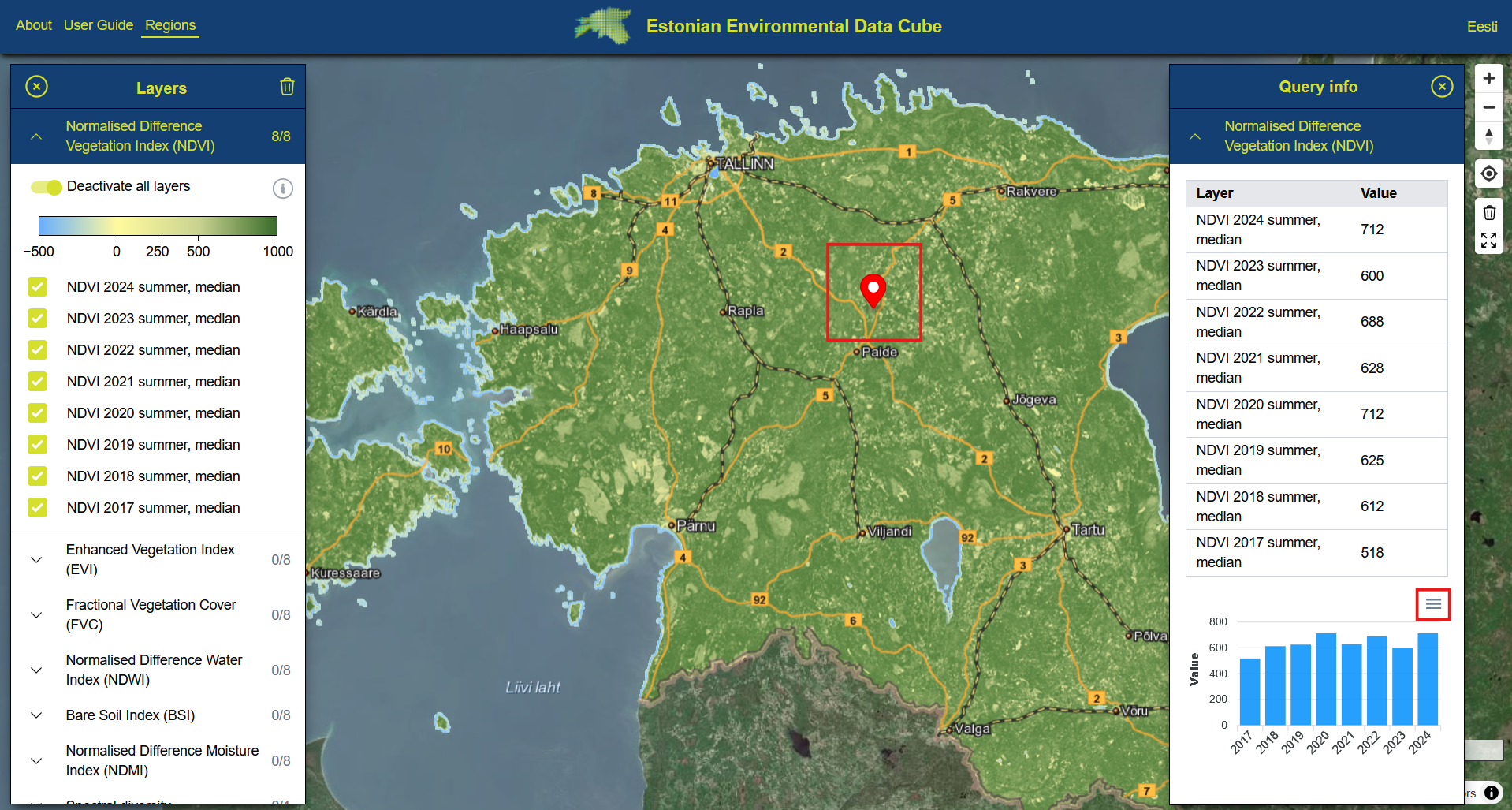 Layer query window with time series graph.