Layers & Layer Groups
When you first open a collection, you will see a map view with a list of layers available in this collection displayed in the right side of the screen. These layers are also grouped thematically according to specific index. For example, all NDVI layers in Sentinel-2 collection are grouped together. All the layers in a group can be activated at once by clicking "Activate all layers". The numbers at the layer group name show how many layers are currently added to the map and how many there are in total (0/8).
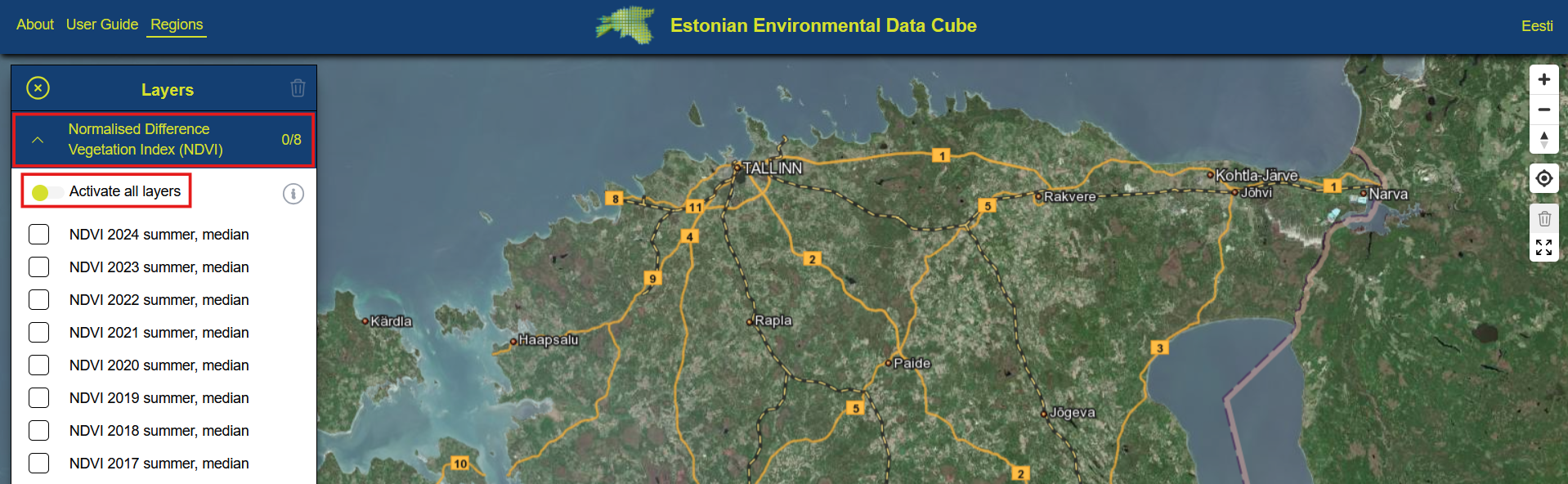 Layer groups can be opened and closed, all layers in the same group can be added to the map by toggling Activate all layers.
Legend for layers appears only after you have activated at least one layer in a group. If you are viewing calculated indices like NDVI for example, then only one legend appears for the enitre group. If you are viewing something like topographic indices in Topography collection, then each layer will have its own legend.
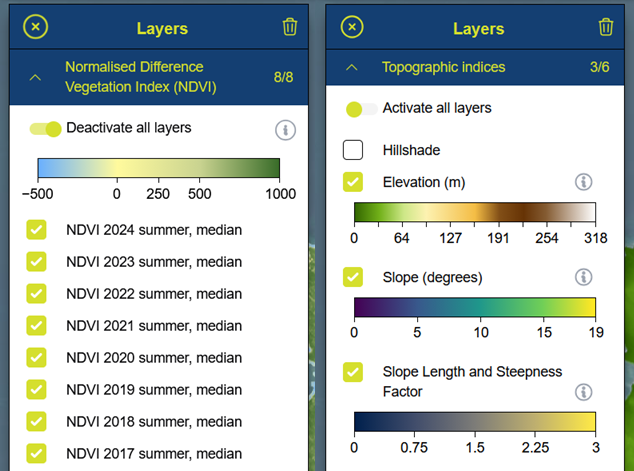 Legends appear in the layers list either per group (in the left image) or per layer (right image).
Metadata about the layers is available by clicking the information button either in the top of the layer group for layers that share the same metadata. In case each layer has its individual metadata record, then the information button will appear next to the layer's name as seen in the image above.
Layer list window can be minimized by clicking the close button in the top left corner of the layers list. All currently active layers can be de-activated by clicking the trash can icon in the top right corner of the layers list window.